Quick answer: If you need to submit BACB documents, use the route that matches the task in your BACB account rather than sending the same file to multiple inboxes. New certification applications and most action items go through the BACB portal. Name updates use the profile settings route, exam accommodations follow the certification-application instructions, and ethics responses use a separate form. As of the BACB’s current portal-transition notice, ACE document submissions are the main exception handled through Contact Us. Upload once, keep your confirmation, and check the current processing guidance before resubmitting.
Table of Contents
- What Does “BACB Submit Documents” Mean?
- Which BACB Submission Route Fits Your Document?
- What Should You Prepare Before Uploading?
- How Do You Submit Documents for a New Application?
- What Are the Important Submission Exceptions?
- What Happens After You Upload BACB Documents? Status Workflow
- Does the 2027 BCBA Transition Change Document Submission?
- BACB Document-Submission Checklist
- Frequently Asked Questions
- Take the Free BCBA Mock Exam
What Does “BACB Submit Documents” Mean?
The phrase BACB submit documents can describe several different tasks: sending supplemental documents with a BCBA or BCaBA application, answering an action item, updating your name, requesting exam accommodations, responding to an ethics request, or sending ACE documentation. Those tasks do not all use the same form or destination. The first step is therefore routing, not uploading.
The BACB’s current portal-transition guidance says that most requests should be completed in the BACB account portal. The current Contact Us page also explains that, after the portal update, only ACE document submissions are available through the Contact Us document-submission path; other requests should be completed in the portal. This is why an older screenshot, bookmarked email address, or general advice from a forum can send an applicant to the wrong place.
Use the exact task label shown in your account and in the latest BACB email. If the BACB has already received your documentation and you are waiting for feedback, do not upload the same files again just to make the status move. The current processing guidance warns that duplicate resubmissions can create delays.
Which BACB Submission Route Fits Your Document?
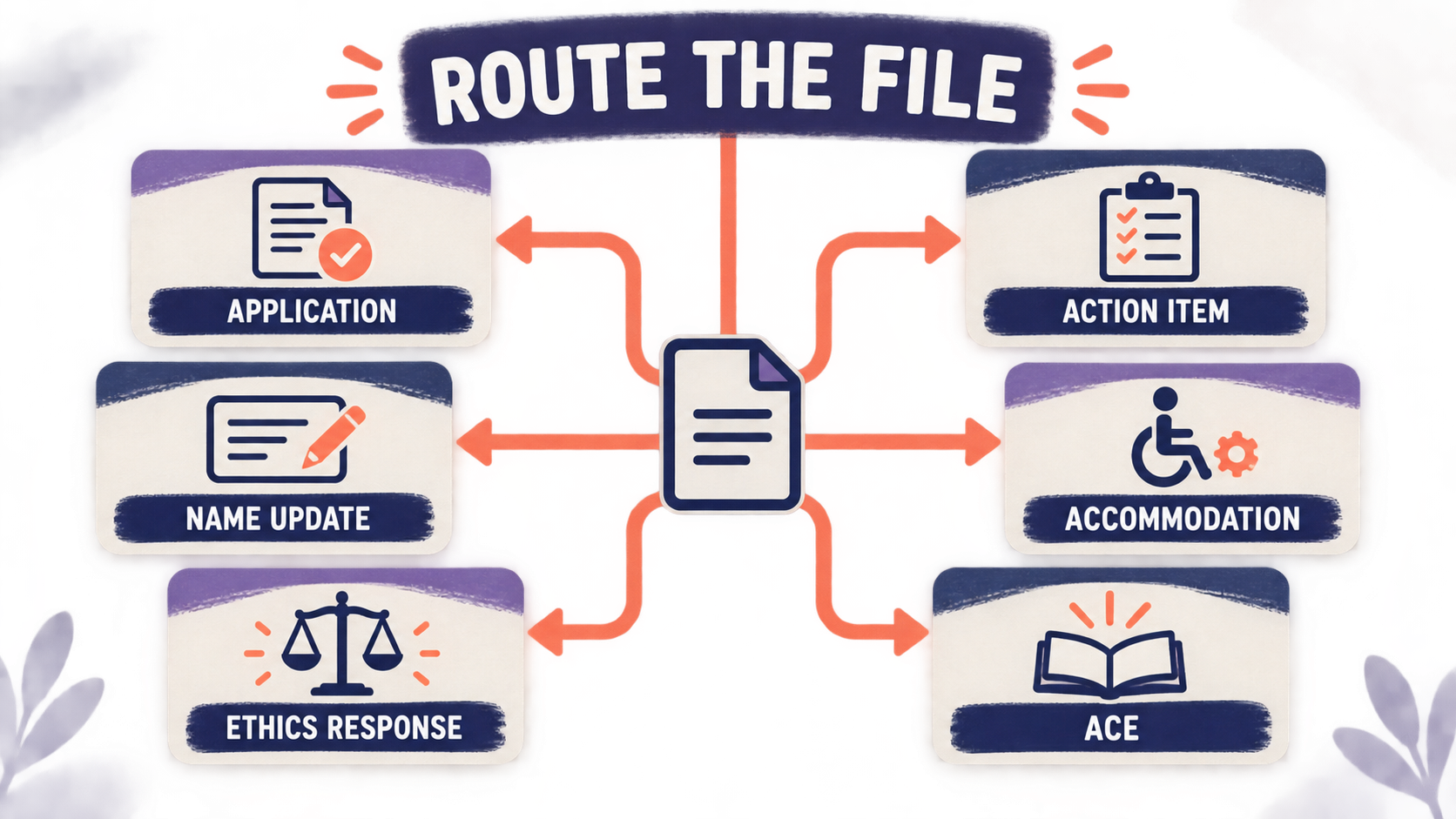
Start with the reader task in the left column. The middle column is the usual current route; the final column prevents the most common routing mistake. Always confirm the live instructions attached to your account because the BACB can change a form, deadline, or portal label.
| Document task | Where to start | What to avoid |
|---|---|---|
| New BCBA or BCaBA application documents | Log in to the BACB portal, open Applications, select the certification application, pay the fee when required, and follow the supplemental-document prompts. | Do not email an application packet or upload before the account shows the correct application task. |
| An action item or resubmission request | Open the action item in the portal and submit the specific replacement or missing document requested. | Do not send a second copy through another channel while the first submission is awaiting review. |
| Name update | Use My Account, then Profile Settings, then Name Updates, and attach the required documentation. | Do not bury a name-change file in an unrelated examination or ethics request. |
| Exam accommodations | Follow the accommodation instructions inside the certification application or the current BACB accommodations page. Combine supporting records in the format requested. | Do not use a generic Contact Us upload as a substitute for the accommodation request process. |
| ACE documentation | Use the BACB Contact Us document-submission route identified for ACE documents. | Do not assume that an ACE exception applies to certification applications, fieldwork, or examination documents. |
| Ethics response requested by BACB | Use the separate Responding to Requests form and follow its file and redaction limits. | Do not use the ethics form for a routine BCBA, BCaBA, or RBT certification application. |
The routing table is the key distinction between this guide and a general application checklist. If you need the broader preparation sequence—education, transcripts, forms, fees, and deadlines—see the site’s BACB application checklist guide. This page owns the narrower “where do I submit this file, and what do I do after submission?” question.
What Should You Prepare Before Uploading?
Document errors usually happen before the upload button. Prepare the file and the submission record together so you can prove what you sent if the BACB asks for clarification.
- Match the file to the request: read the portal label, action item, or email and submit only what that task asks for.
- Use an accepted format: the current Contact Us instructions list common formats such as PDF, JPG or JPEG, PNG, GIF, DOC or DOCX, and XLS or XLSX. The portal task may be narrower, so follow the task-specific rule.
- Check size and count: the current uploader instructions identify a maximum file size of 10 MB and may limit the number of files on a form. Split or combine files only when the BACB instructions allow it.
- Make every page readable: check that names, dates, signatures, institutional details, and page edges are visible. A blurry scan can be treated like missing information.
- Keep a private copy: save the exact file name and final version you uploaded. BACB documents may become part of the application record and may not be returned.
- Remove unnecessary sensitive data: redact only when the applicable BACB instruction permits it. Never alter a required form or hide information the reviewer needs.
For a paid certification application, also verify timing. Current handbook instructions explain that an application is not processed before the application and fee are received, and that supplemental documents must be submitted within the stated application window. Do not treat a general “upload documents” page as permission to skip the application, payment, transcript, or attestation step.
How Do You Submit Documents for a New Application?
For a new BCBA or BCaBA application, use a simple sequence. The labels can change, but the logic is stable: establish the application, submit the fee when required, attach the requested evidence, then preserve the confirmation.
- Sign in to the BACB portal. Use the account tied to your certification record. Do not create a second account to work around a missing upload button.
- Open Applications. Choose the correct credential and pathway. Read the application’s document list before scanning or renaming files.
- Complete the required application fields and payment step. If the account has not accepted the application or fee, document review may not begin.
- Upload each requested document in its matching slot. Use the current form version and include official transcripts or attestations when the pathway requires them.
- Review before submitting. Confirm that the correct applicant, credential, pathway, dates, and files appear in the final review screen.
- Submit once and save proof. Keep the confirmation page, confirmation email, date, and file list in a private folder.
If your account gives you an action item instead of a new-application upload area, follow the action item. An action-item resubmission is not the same as starting over. The current processing-updates page also says that resubmitted items are handled by their resubmission date, so submit the corrected file promptly but do not repeatedly replace it without a request.
What Are the Important Submission Exceptions?
Four categories deserve extra care because they are often confused with ordinary certification documents.
- Exam accommodations: accommodations are requested through the certification application process and current BACB accommodation instructions. Supporting documentation may need to be combined into one PDF or supplied in a specific format. The accommodation request is not the same as a routine transcript or fieldwork upload. See the site’s BACB examination accommodation request guide for the separate planning task.
- Ethics responses: if the BACB sends an ethics request, use the form and limits stated on the responding-to-requests page. A general certification document should not be routed through the ethics form.
- ACE documents: the current Contact Us instructions identify ACE document submissions as a special Contact Us route after the portal transition. Confirm that the document is truly ACE-related before using that exception.
- Name changes and profile updates: use the profile settings route and the requested identity documentation. A profile change can affect how your certification record and application documents are matched.
What Happens After You Upload BACB Documents? Status Workflow
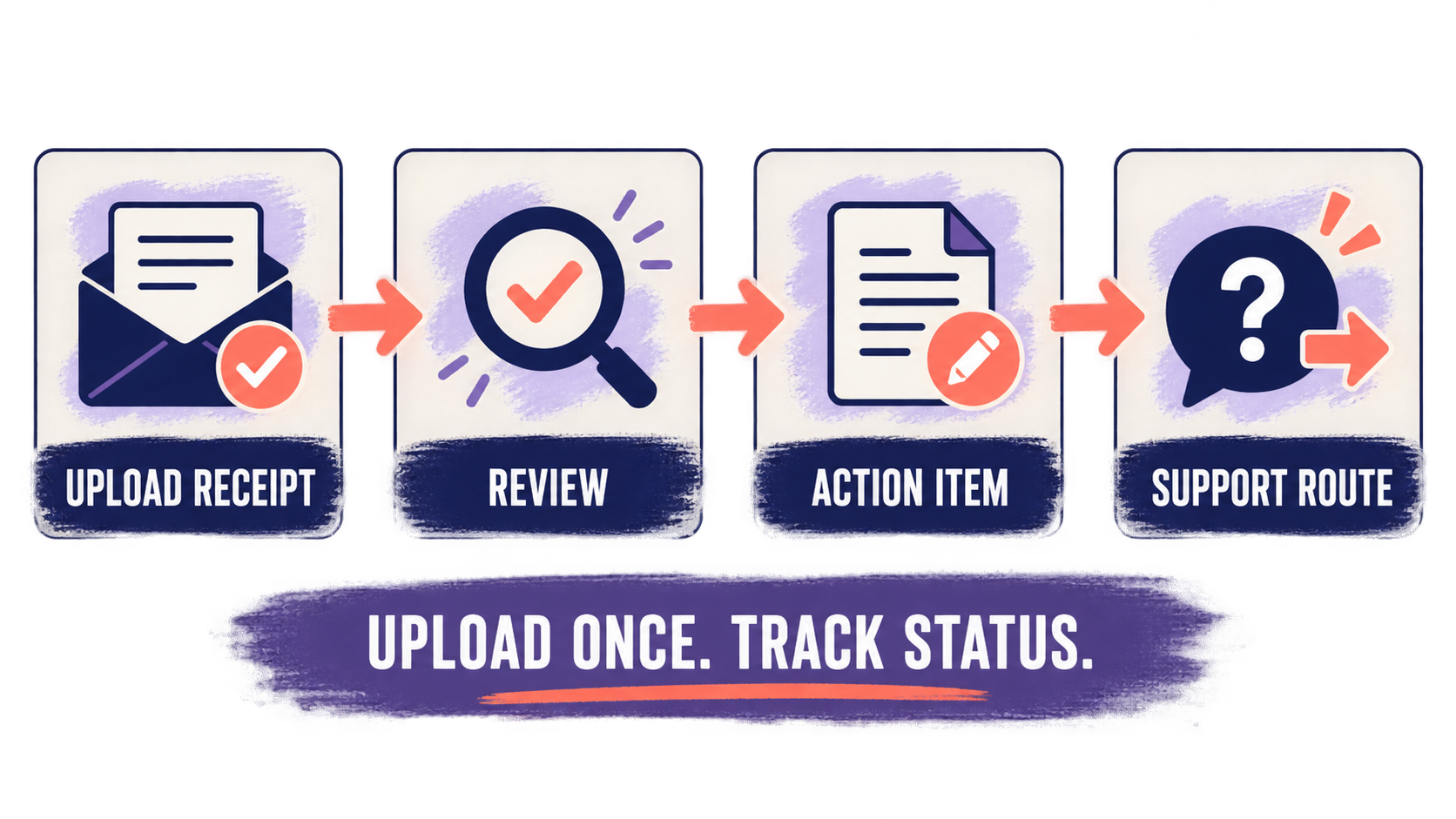
The two most common examples are a normal application upload that is waiting for review and an action-item correction that needs one replacement file. Use the same four-step status workflow for both, but do not treat an upload receipt as a final decision.
Uploading a file is not the same as approval. After submission, keep a short status record with four fields: date submitted, exact task, file name, and confirmation or reference number. That record makes a later support request precise and helps you distinguish “submitted” from “reviewed,” “accepted,” or “additional information requested.”
| Portal signal | What it usually means | Your next move |
|---|---|---|
| Upload confirmation received | The system recorded a submission, but a reviewer may not have completed the check. | Save the confirmation and monitor the account; do not create a duplicate submission. |
| Action item appears | The BACB needs a correction, replacement, or additional document. | Read the exact request, correct only the identified problem, and resubmit through that task. |
| No change while within the stated processing window | A submitted file may still be waiting for review. Published processing dates are not a promise of an individual decision date. | Check the latest BACB processing update and keep your record; avoid duplicate uploads. |
| Technical error or missing portal option | The issue may be account or system related rather than a document-quality issue. | Capture the error, date, browser, and task, then use the current support route instead of emailing duplicates. |
If the BACB asks for a correction, compare the old and new files before resubmitting. The goal is one clear replacement tied to one request. Multiple versions uploaded through different routes make it harder to identify which document should control.
Does the 2027 BCBA Transition Change Document Submission?
The 2027 BCBA transition changes the certification requirements that applicants must meet, including coursework and supervised fieldwork pathways. It does not mean every old document should be uploaded again, and it does not automatically create a new generic email route. Use the current BACB transition guidance for which requirement applies to your application and use the portal task that appears in your account.
Be especially careful with dates and form versions. A transition document may explain whether a course, attestation, or fieldwork record can be used, while the portal determines where that evidence is submitted. When the transition guidance, your account, and an older webpage appear inconsistent, follow the current account instruction and contact BACB through the current support route for a case-specific answer. Do not infer an exam change or a document exception from the existence of the 2027 transition alone.
BACB Document-Submission Checklist
Before you click the final submit button, verify each item below:
- I identified the exact task: new application, action item, name update, accommodation, ethics response, or ACE submission.
- I am using the current BACB portal or form route for that task.
- The credential, pathway, applicant name, dates, and form version match.
- Every file is readable, within the stated format, size, and count limits.
- I saved the exact files and a record of the submission date.
- I received a confirmation or captured the portal reference.
- I know whether the next step is waiting, answering an action item, or contacting support.
- I will not resubmit the same documentation unless the BACB requests a correction or the current instructions explicitly require it.
Frequently Asked Questions
Where do I submit BACB application documents?: Start in the BACB portal under Applications and follow the document prompts for the credential and pathway you selected. The current application instructions—not an old email address—control the exact upload route.
Can I email BACB documents instead?: Do not assume email is an acceptable substitute. The current portal-transition information directs most requests to the portal and identifies ACE documents as a specific Contact Us exception. Use the route shown for your task.
What if I already submitted my documents?: Save your confirmation and monitor the portal or current processing update. If the BACB has not requested a correction, do not repeatedly submit the same files because duplicate submissions can delay review.
How large can my uploaded BACB file be?: The current Contact Us uploader instructions list a 10 MB maximum and file-count limits, but a specific portal task may have its own rule. Check the upload screen and follow the narrower requirement if it differs.
Is submitting documents the same as having an application approved?: No. Submission confirms that a file was sent. The BACB still must review the application or request, and it may issue an action item or ask for a replacement document.
Study after your document plan is clear: If you are preparing for the BCBA examination while completing your application, use the free BCBA mock exam as practice. It is an independent study resource, not a BACB submission channel, official application review, or guarantee of certification. Official Sources Used
- BACB Contact Us and portal-transition document-submission instructions
- BACB Application Processing Updates
- The Life Cycle of BCBA and BCaBA Applications
- BCBA Handbook
- BACB Examination Information and Accommodations
- BACB Accommodations Documentation
- BACB Responding to Requests for Ethics Information
- Guidance for Meeting BCBA Requirements During the 2027 Transition
Take the Free BCBA Mock Exam
If you want a low-pressure way to check your recall, use the free practice resource below. Take the Free BCBA Mock Exam