A BACB fieldwork tracker Google Sheets file can be convenient when you need access from more than one device or want to review a log with a supervisor. The convenience comes with a responsibility: make your own copy, control who can see it, and preserve a final record outside the live sheet. Google Sheets is a tracking tool, not an automatic substitute for current BACB verification forms.
Table of Contents
- In This Guide
- What a BACB Fieldwork Tracker Google Sheets File Is—and Is Not
- How to Set Up a Private Working Copy
- Which Tabs and Columns to Use
- How to Review, Lock, and Export a Month
- How to Handle 2022 and 2027 Versions
- Sharing, Privacy, and Formula Risks
- Frequently Asked Questions
- Take the Free BCBA Mock Exam
The current BACB fieldwork materials describe an ongoing documentation system that should show dates, hours, activities, supervision, and review. Start with the official BCBA fieldwork resources, then configure your sheet for the requirement edition and pathway that apply to you. Do not treat a template listing that says “2027 ready” as proof that its formulas or forms are current.
In This Guide
What a BACB Fieldwork Tracker Google Sheets File Is—and Is Not
A Google Sheets tracker is a live spreadsheet that helps you record source entries and produce summaries. It can reduce duplicate typing, make missing fields visible, and give you a convenient place to review a month with the supervisor. It cannot decide whether an activity is qualifying, validate a supervisor’s eligibility, or replace a required BACB form.
| Google Sheets feature | Useful for | Risk to control |
|---|---|---|
| Cloud access | Entering a log from an approved device and reviewing progress during supervision. | A shared link can expose more information than intended. |
| Version history | Showing when a correction or configuration change occurred. | History does not replace a signed final record or explain an unexplained edit. |
| Protected ranges | Preventing formulas and setup assumptions from being overwritten during data entry. | Protection is not the same as privacy or access control. |
| Export | Saving a review copy or preparing information to transfer to the current official form. | A downloaded file can become stale if the live sheet changes afterward. |
The BACB’s Documenting Fieldwork Hours resource places a tracker beside the supervision contract, ongoing documentation, and Monthly and Final Fieldwork Verification Forms. Keep those roles separate when you design the sheet.
How to Set Up a Private Working Copy
Start from a copy that you own or can manage. Do not enter your fieldwork into a public template and assume that “anyone with the link” is harmless. If a school, employer, supervisor, or seller provided the original file, make a copy into the account and folder where you will control access, then rename it with the pathway, requirement edition, and start period.
Use a small setup tab: Put the candidate pathway, fieldwork type, requirement edition, planned application timing, start date, and supervisor identifiers in one visible setup area. Add the source and review date for each requirement assumption. If you configure a monthly maximum or supervision threshold, do not bury that value in a formula. A reviewer should be able to see what the sheet is using before trusting a dashboard.
Use separate cells for editable assumptions and protect the cells containing formulas. When a new BACB update applies, create a new version of the sheet or a clearly labeled configuration tab. Avoid silently replacing the settings on a live file that already contains signed or reviewed months.
Set sharing before adding sensitive notes: Use named people rather than an unrestricted link whenever collaboration is needed. Give the supervisor the minimum access necessary for the review, and remove access when the relationship ends if your agreement and privacy rules require it. Do not place client names, medical information, or unnecessary identifiers in ordinary cells. Use a code only when the code key is stored securely and the record still remains understandable to the authorized reviewer.
Remember that Google account access, browser sessions, downloaded copies, and screenshots are all part of the risk surface. A private sheet is not automatically a compliant record. Follow your workplace policies, supervision agreement, and applicable privacy obligations.
Which Tabs and Columns to Use
A useful sheet separates raw entries from calculations. You can use different tab names, but the jobs should remain clear:
- Setup: pathway, requirement edition, dates, assumptions, supervisor key, and review date.
- Hours Log: one row per meaningful session or activity record.
- Supervision Log: contact date, duration, format, supervisor, feedback summary, and related evidence.
- Monthly Review: calculated totals, exception flags, review note, and signature status.
- Archive Index: filenames or links to signed records, contracts, amendments, and exported review copies.
A row-level hours log should generally include:
- Date and start/end time or a defensible duration
- Fieldwork type and activity category
- Supervisor or supervision contact when applicable
- Short description of the work and feedback context
- Review status, correction note, and source version when needed
Use controlled dropdown values for repeated fields. If one row says “group supervision,” another says “group,” and a third says “Grp,” the monthly summary may split one concept into three labels. Protect the dropdown list and ask the supervisor about an uncertain category rather than choosing the label that makes the dashboard look better.
How to Review, Lock, and Export a Month
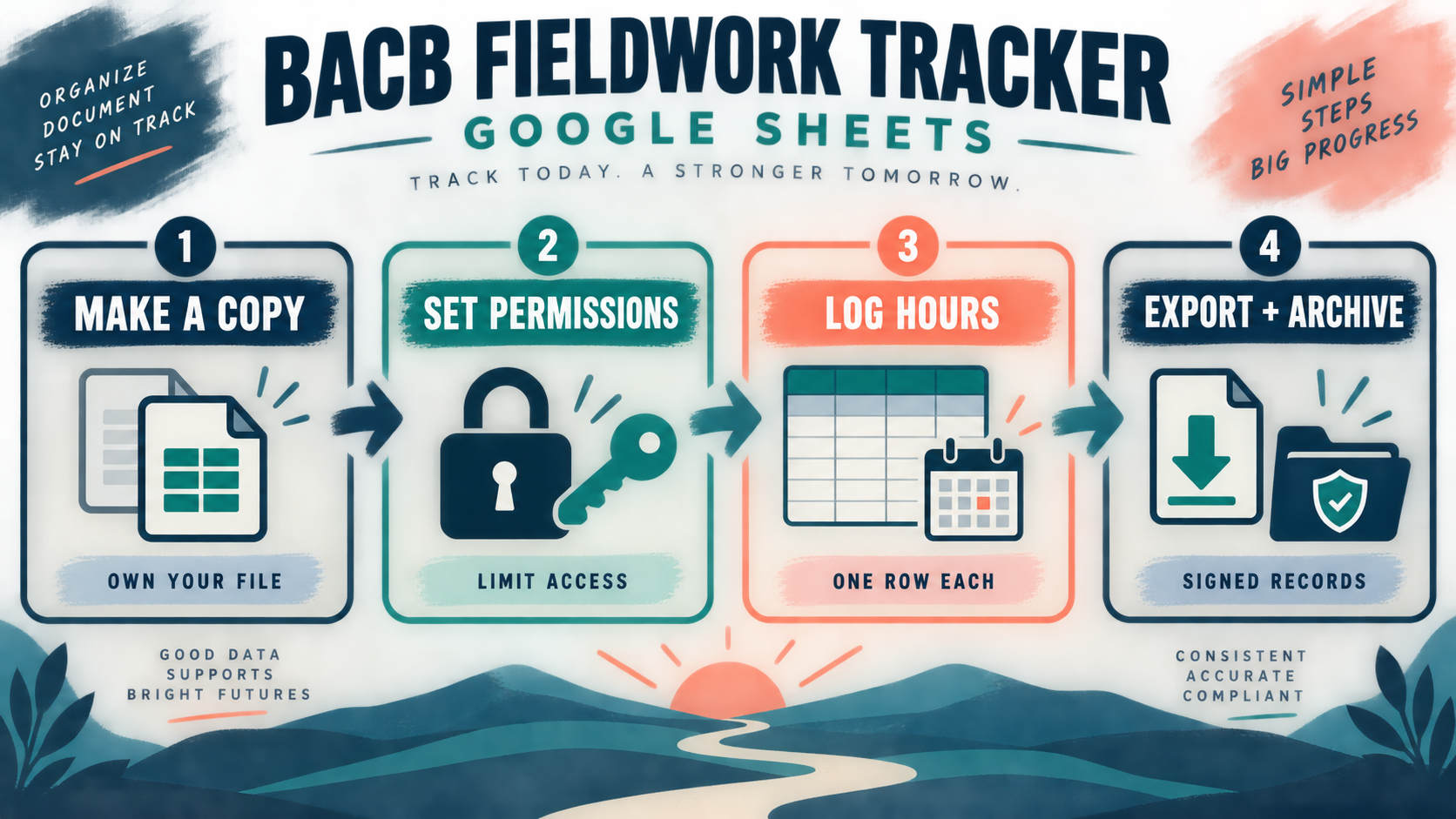
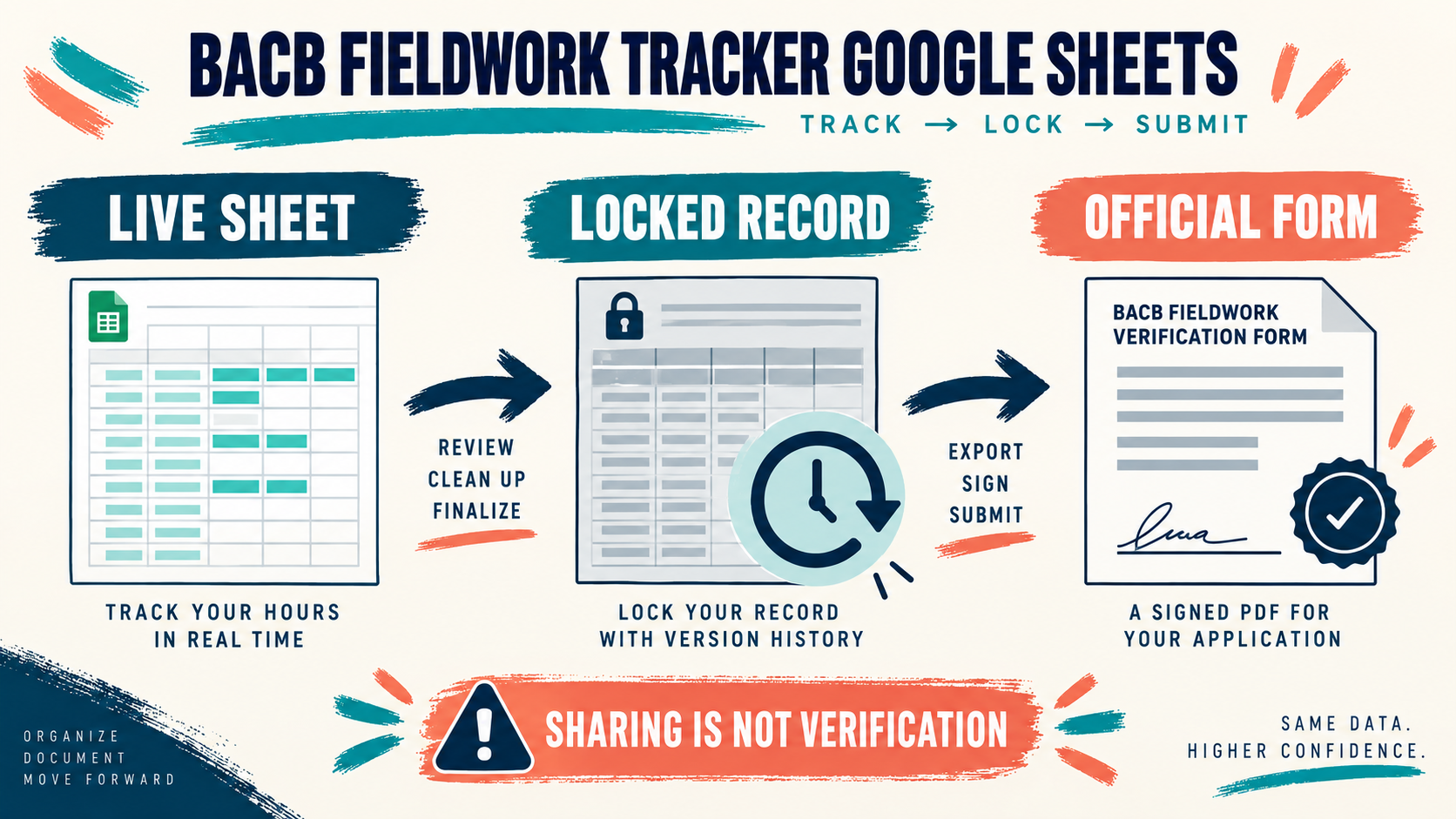
A live sheet should be treated as a working record until the month has been reviewed. Before a supervisor signs the applicable Monthly Fieldwork Verification Form, run the same sequence every time.
- Select the period. Confirm the month, arrangement, requirement edition, and supervisor before reading the totals.
- Review source rows. Look for blank dates, duplicates, unexplained gaps, unusually long durations, and categories that changed mid-month.
- Check formulas. Confirm that the summary pulls from the intended range and that the totals can be traced back to individual rows. Test a formula on a small sample if the template is new.
- Resolve exceptions. Keep a visible list of missing information or classification questions. Do not hide an exception by deleting the row.
- Protect the review copy. Save a dated copy or export after the supervisor review, and record who reviewed it and what was corrected.
- Complete the official record. Use the current BACB verification form for the applicable pathway and requirement edition. Sharing a sheet with a supervisor is not the same as signing that form.
For example, a dashboard may show 118 total hours while the export prepared last week showed 114. That difference may be a legitimate correction, a formula-range error, or an accidental edit. Check the version history and source rows, write down the explanation, and preserve the reviewed copy. Never assume that the newest number is correct simply because it is newest.
How to Handle 2022 and 2027 Versions
Google Sheets templates often advertise a year in their title, but the title does not decide which BACB requirements apply to your application. Use the current BACB 2027 requirements page, the current handbook, and your application timing to identify the relevant edition.
Keep the edition visible on every monthly summary. If your sheet supports more than one rule set, label the selected set clearly and make sure formulas point to the selected configuration rather than mixing values from two tabs. If you change the rule set, save the previous version and a transition note. Do not recalculate old signed months under a new set of assumptions without documenting why. The current BACB checklist and documentation resources also emphasize keeping records organized and accessible. Use the sheet to make the transition visible; do not let a dashboard hide which version produced a total.
Sharing, Privacy, and Formula Risks
- Public link access: “Anyone with the link” is easy to forget and difficult to audit. Prefer named access.
- Editor drift: A collaborator can overwrite a formula, sort one column, or paste a value over a calculated cell. Protect ranges and review history.
- Copy drift: A downloaded Excel or PDF file can differ from the live sheet. Give exports a date and version name.
- Formula compatibility: Add-ons, scripts, and functions may not behave the same after export. Test the actual workflow you will use.
- Privacy leakage: Comments, notes, hidden tabs, and cell history can contain more information than the visible dashboard.
- Access loss: If the sheet lives only in a work or school account, you may lose it when the relationship ends. Keep an approved personal archive.
Google Sheets gives you useful collaboration controls, but “shared” is not the same as “verified.” A supervisor’s review still needs a clear record of what was reviewed, what changed, and which official form was signed.
Frequently Asked Questions
Is a Google Sheets template an official BACB form?: Usually, no. It is a tracking tool unless the current BACB instructions explicitly identify it as the required form. Use the official BACB resource hub and current handbook as the authority for forms and requirements.
Can my supervisor edit the live sheet?: That depends on your arrangement and privacy rules. If editing is allowed, protect setup and formula ranges, use named access, and preserve a dated review copy. A supervisor’s access does not make every formula or activity classification correct.
Should I export the sheet every month?: A dated export or locked review copy is a sensible way to preserve what was reviewed, but it should be part of a complete documentation system. Keep the underlying source entries, review notes, related contract, and signed official forms together.
Can I use one sheet for multiple supervisors?: You can design a system that identifies each supervisor and arrangement clearly, but do not mix periods so that a reviewer cannot tell who supervised which entry. Keep contracts, amendments, and verification records linked to the correct period and organization.
Is fieldwork tracking the same as BCBA exam preparation?: No. A tracker helps protect your fieldwork record; it does not measure readiness for exam questions. Once your documentation system is organized, you can use the free BCBA mock exam as a separate practice step. It does not provide supervision, approve hours, or guarantee certification.
The strongest BACB fieldwork tracker Google Sheets setup is simple and controlled: own the working copy, limit access, keep source rows, make formulas visible, review one month at a time, and export a dated record before completing the official verification process. Let the sheet organize evidence; let the current BACB requirements and supervisor determine how that evidence is interpreted. For targeted review, use our bacb fieldwork tracker google sheets practice questions to apply the concept in exam-style scenarios.
Take the Free BCBA Mock Exam
If you want a low-pressure way to check your recall, use the free practice resource below. Take the Free BCBA Mock Exam