
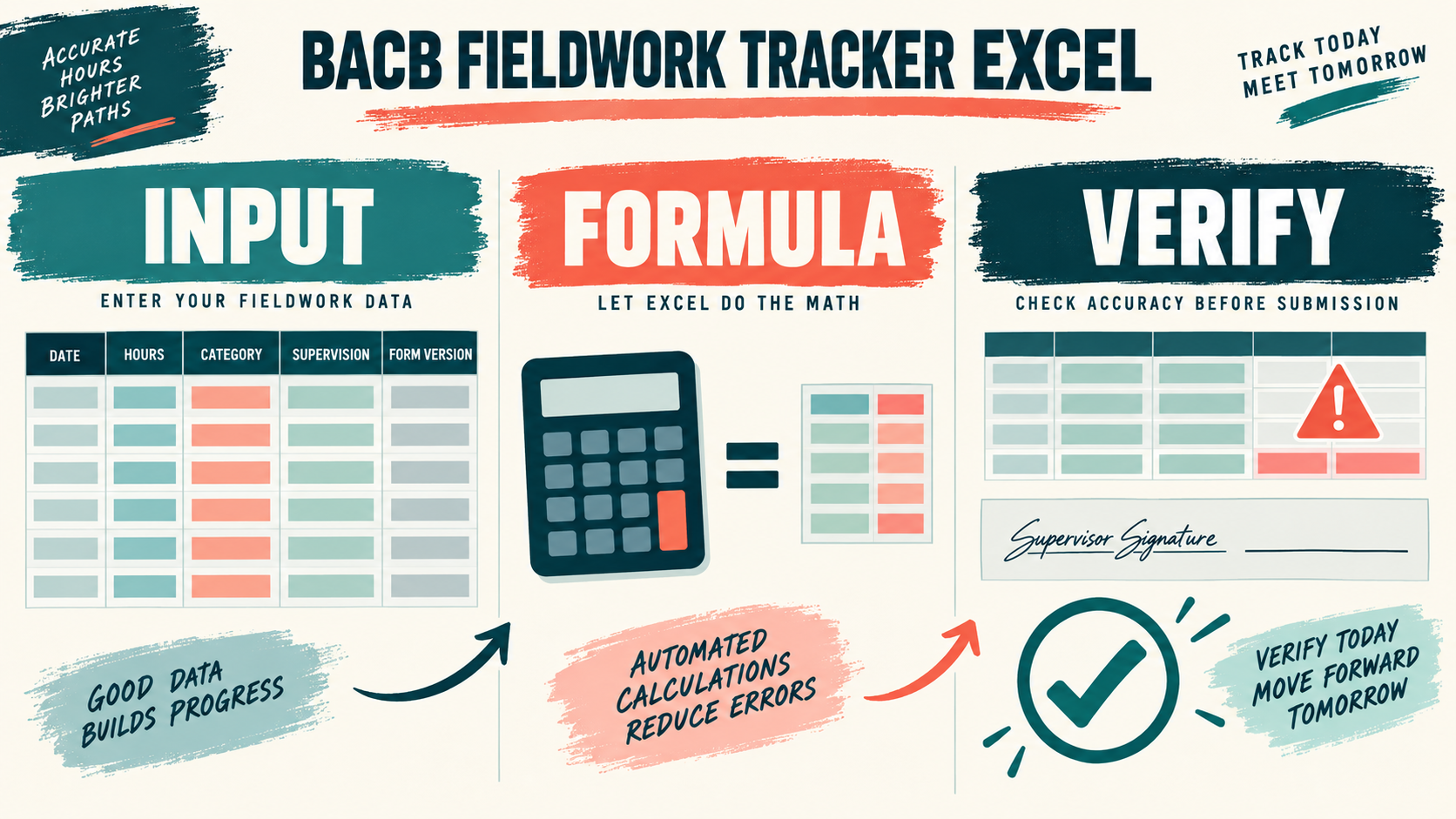
A BACB fieldwork tracker Excel workbook can make daily logging and monthly review much easier, but it is not automatically an official BACB form. The safest setup is to use Excel as your private documentation system and quality-control layer, then complete the current BACB verification forms and keep the signed records required for your pathway.
Table of Contents
- In This Guide
- What a BACB Fieldwork Tracker Excel Workbook Should Do
- How to Set Up the Workbook Before Logging Hours
- Which Fields and Formulas Make the Tracker Useful
- How to Run a Monthly Fieldwork Review
- How to Keep the Workbook Current Through 2027 Changes
- Common BACB Fieldwork Tracker Excel Errors
- Frequently Asked Questions
- Take the Free BCBA Mock Exam
The current BACB guidance gives candidates flexibility in how they document ongoing fieldwork, while still expecting the record to show what happened, when it happened, who supervised it, and how the applicable requirements were met. Start with the current BACB BCBA fieldwork resources and treat any downloaded workbook as a tool that must be checked against the current handbook and requirement edition.
In This Guide
What a BACB Fieldwork Tracker Excel Workbook Should Do
A good workbook answers three questions quickly: what activity occurred, how much time was recorded, and whether the month is ready for supervisor review. It should make missing information visible without pretending that a formula can decide whether an activity qualifies as fieldwork.
| Workbook function | Useful outcome | Boundary |
|---|---|---|
| Daily entry log | Creates a dated record of hours, activity, supervisor, and context. | It cannot make an unclear activity qualifying by itself. |
| Monthly summary | Shows totals and possible gaps before the verification form is signed. | It must agree with the underlying entries and the applicable limits. |
| Version control | Records whether the workbook is configured for the relevant pathway and requirement edition. | A version label is not proof that the workbook is officially accepted. |
| Archive index | Helps you find signed records, contracts, amendments, and review notes. | It must protect private information and preserve the source files. |
The BACB’s Documenting Fieldwork Hours resource places the tracker in a larger system that includes a supervision contract, ongoing documentation, and Monthly and Final Fieldwork Verification Forms. Excel is most useful when it supports that system instead of replacing it.
How to Set Up the Workbook Before Logging Hours
Do the setup once, review it with your supervisor, and lock the cells that should not change during ordinary data entry. A blank workbook invites silent inconsistencies; a small configuration sheet makes the assumptions visible.
Create a setup tab: Put the pathway, fieldwork type, requirement edition, start date, and planned application timing at the top of the workbook. Keep the required total hours, monthly minimum and maximum, supervision thresholds, observation fields, and category rules in clearly labeled cells. Do not type the same number into five different formulas. If a requirement changes, one visible configuration cell is easier to audit than scattered hard-coded values.
Include the supervisor’s name and BACB ID only where the record needs them, and identify how multiple supervisors or an organization will be represented. The setup tab should also contain a “last reviewed” date and a short note such as “confirm with supervisor before using for a new requirement edition.” That note is not busywork; it prevents a copied workbook from looking current when it is not.
Build a daily log with one row per meaningful entry: At minimum, a daily log should include the date, start and end time or a defensible duration, fieldwork type, activity category, supervisor or supervision contact when applicable, and a concise context note. For a supervision contact, add the supervision format and a summary of the discussion or feedback. For an observation, identify the setting and the supervisor without placing unnecessary client identifiers in the workbook. A practical row-level field set is:
- Date and start/end time or duration
- Fieldwork type and activity category
- Supervisor and supervision format when applicable
- Short activity or feedback note
- Review status and correction note when needed
One row per month is usually too vague for an audit trail. One row per small activity is more useful, provided the entries do not become so fragmented that nobody can review them. Choose a consistent level of detail and explain it to the supervisor. Use Excel data validation for repeated values such as activity category, fieldwork type, and supervision type so that “individual,” “Individual,” and “indiv.” do not become three separate categories in a pivot table.
Separate source entries from summaries: Keep the daily log as the source table. Use separate monthly, dashboard, and archive tabs for summaries. Do not type over a calculated total to make it match a verification form. If a correction is needed, correct the source row, add a short note, and let the summary recalculate. That creates a traceable reason for the change.
Which Fields and Formulas Make the Tracker Useful
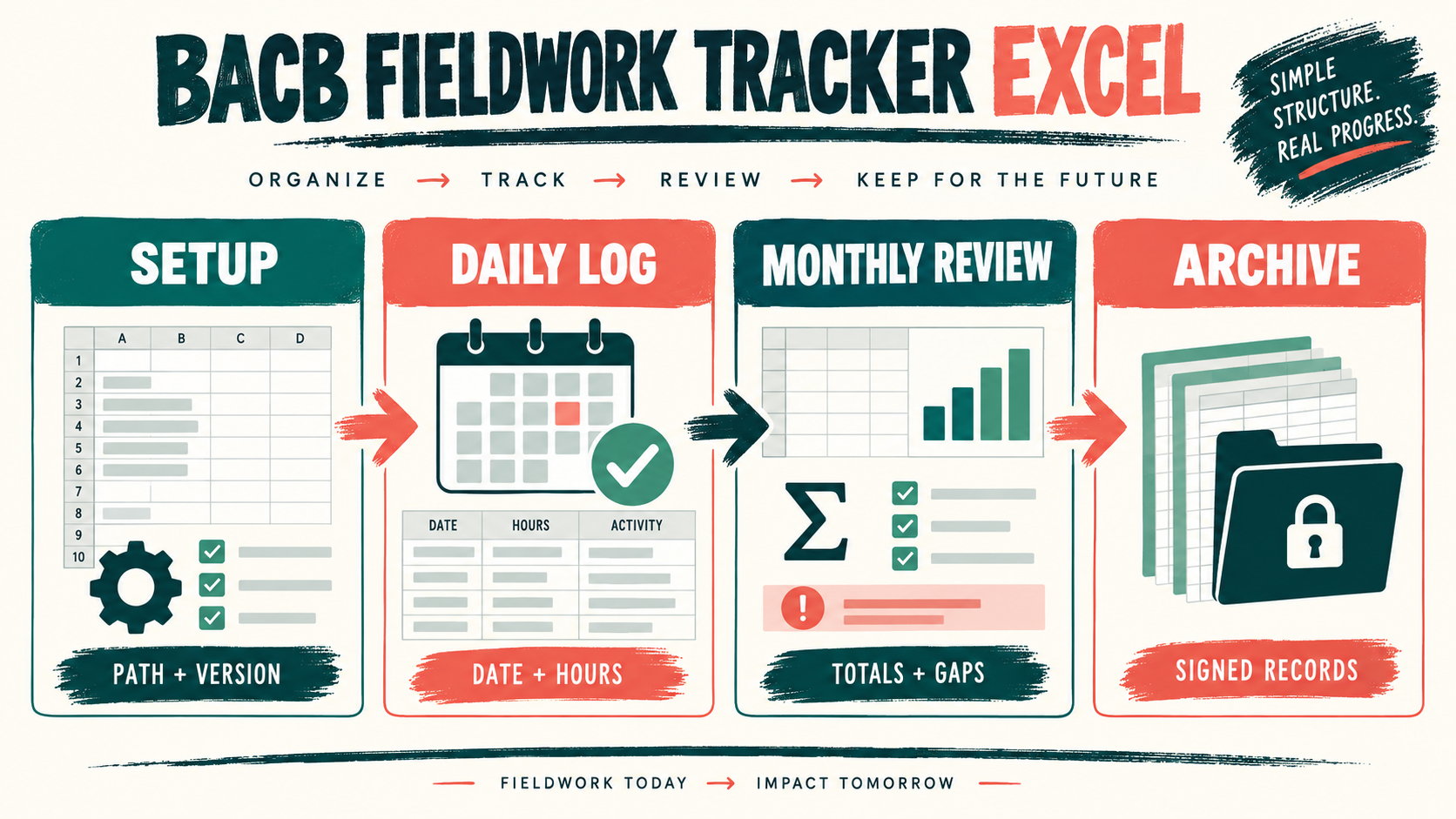
The best formulas answer review questions; they do not create a false sense of compliance. For example, if the daily log is an Excel table named FieldworkLog, a monthly total can be calculated with a SUMIFS formula using the date range and the month selected on the summary tab. A second formula can total only rows marked with a particular activity category. The exact formula depends on your column names, so test it with a small sample before relying on it. Useful controls include:
- Date validation: flag blank dates, dates outside the active arrangement, and entries that appear before the permitted start point.
- Duration validation: flag negative durations, text in numeric cells, and entries that do not reconcile with start and end times.
- Category validation: use a controlled list for activity and fieldwork categories, then review ambiguous work with the supervisor rather than forcing a convenient label.
- Supervision checks: show whether a month has a recorded supervision contact and the evidence needed for the applicable arrangement.
- Version checks: display the selected requirement edition on every monthly summary so a printed page does not lose its context.
- Exception flags: highlight a missing signature, an unusually high monthly total, a blank supervisor, or a month with no review note.
Use formulas such as COUNTIFS, SUMIFS, and simple date comparisons only after you understand what each column means. A formula that counts rows is not the same as a formula that proves supervision happened. Keep a “manual review required” column for questions that arithmetic cannot answer.
How to Run a Monthly Fieldwork Review
Run the review before asking a supervisor to sign the monthly verification form. The goal is to compare the source record, the calculated summary, and the current form—not to force the form to match an unexplained spreadsheet total.
- Freeze the review period. Select the month, confirm the arrangement and requirement edition, and save a review copy so later edits do not erase what was checked.
- Scan the source rows. Look for blank dates, duplicate entries, unexplained gaps, unusually long sessions, and activity labels that changed during the month.
- Check the calculations. Compare total hours, category totals, supervision entries, and observations with the applicable planning cells. Investigate exceptions instead of silently deleting them.
- Review the narrative. Confirm that the notes show enough context to explain the work and the supervision conversation without including unnecessary protected information.
- Compare the official form. Use the current Monthly Fieldwork Verification Form for the applicable pathway and requirement edition. The workbook can prepare the numbers, but the supervisor and trainee still need to review and sign the official record.
- Archive the result. Save the signed form, the relevant contract or amendment, the reviewed workbook copy, and any correction note in a secure folder with a predictable filename.
For a simple example, suppose the daily log totals 126 hours, but three entries were marked as “pending classification.” The dashboard should show 126 recorded hours and a separate exception count of three, not hide the entries or present 126 as fully verified. Once the supervisor resolves the classifications, update the source rows, record the decision, and rerun the summary.
How to Keep the Workbook Current Through 2027 Changes
Do not buy or download a workbook merely because its sales page says “2027 ready.” A workbook can contain attractive dashboards and still use an outdated fieldwork rule, a stale form, or the wrong pathway settings. The BACB 2027 requirements page and the current handbook should be the sources for the requirement edition that applies to your case.
Label each workbook with at least three pieces of information: the candidate pathway, the fieldwork requirement edition, and the form version used for review. If you change the configuration, duplicate the workbook with a new version name instead of overwriting the only copy. Keep the earlier signed summaries unchanged and add a transition note explaining when the new settings began.
This matters because the same number can mean different things under different requirement editions. A monthly maximum, supervision percentage, observation rule, or form deadline should never be inferred from a formula copied from a different candidate’s workbook. The spreadsheet can surface the difference; your supervisor and current BACB instructions decide how to apply it.
Common BACB Fieldwork Tracker Excel Errors
- Calling the workbook an official form. A tracker is a personal documentation tool unless the current BACB instructions explicitly say otherwise.
- Hard-coding requirements in formulas. Put assumptions in a visible setup area and record the source and review date.
- Mixing supervisors without a clear key. Use consistent supervisor names or IDs and keep contracts and amendments connected to the right period.
- Using a single monthly total with no source rows. A total cannot explain dates, activities, supervision, or corrections.
- Storing protected information in ordinary notes. Record only what is needed for the fieldwork record and follow workplace privacy rules.
- Updating a signed month retroactively. Preserve the signed copy, document the correction, and ask the supervisor how the change should be handled.
Frequently Asked Questions
Does BACB provide an official Excel tracker?: BACB resources have historically referenced tracker tools, but an old workbook or a third-party download is not automatically the current authority. Start with the current BACB fieldwork resource hub and handbook, then verify the workbook’s fields and settings with the supervisor.
Can an Excel tracker replace the Monthly Fieldwork Verification Form?: No. Excel can help you calculate and review the source record. It does not automatically replace a current BACB verification form, required signatures, or a supervision contract.
What should I do if a formula and the form disagree?: Stop and reconcile the source rows. Check dates, duplicates, category decisions, supervisor entries, and the requirement edition before changing either number. Keep a note of the explanation and ask the supervisor to review the correction.
Should I use a template with a dashboard?: A dashboard is helpful when it is transparent: you should be able to trace every total back to source rows and see the assumptions behind each flag. A polished dashboard with hidden formulas is harder to trust than a simple workbook you can audit.
Is fieldwork tracking the same as BCBA exam preparation?: No. The tracker protects the accuracy of your fieldwork record; it does not measure exam readiness. Once the documentation review is under control, you can use the free BCBA mock exam as a separate practice step. It does not provide supervision, approve fieldwork, or guarantee certification.
The right BACB fieldwork tracker Excel workbook is deliberately boring in the best way: clear inputs, visible assumptions, traceable formulas, monthly exceptions, and a secure archive. Build it around the current BACB requirements, review it with your supervisor, and keep the official signed records alongside the spreadsheet instead of asking Excel to make an eligibility decision.
Take the Free BCBA Mock Exam
If you want a low-pressure way to check your recall, use the free practice resource below. Take the Free BCBA Mock Exam