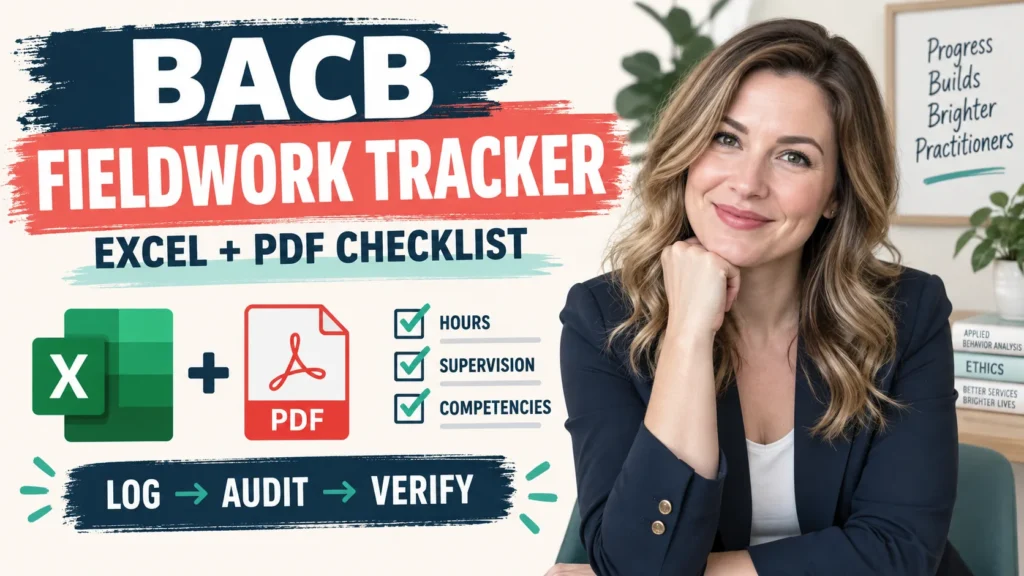
If you searched for a BACB fieldwork tracker Excel download PDF, you are probably trying to solve two different problems at once: how to keep a usable source record and how to complete the correct official verification form. Start by separating them. An Excel or Google Sheets tracker organizes your activity data. A PDF may be a quick-start guide, an exported copy, or an official BACB form. The file extension alone does not tell you which one it is.
Table of Contents
- BACB fieldwork tracker Excel download PDF: the short answer
- Choose Excel, PDF, or Google Sheets by job
- The pre-download checklist
- How the tracker should move toward the official form
- Check the 2022/2027 version boundary
- Protect the record and the client
- Common download mistakes
- FAQ
- Sources for Further Study
- Take the Free BCBA Mock Exam
This checklist helps you inspect a download before you rely on it. It covers format, requirement version, required fields, privacy, formulas, and the supervisor-review path. The BACB fieldwork resource hub is the authority for current forms and official fieldwork materials. A third-party tracker can support your process, but it cannot approve eligibility or replace the form and attestation required by the applicable BACB rules.
BACB fieldwork tracker Excel download PDF: the short answer
Use a spreadsheet when you need to enter, sort, calculate, and audit dated fieldwork activity. Use a PDF when you need a stable copy for reading, printing, sharing, or completing a form that was designed for PDF fields. Use Google Sheets when collaboration and access control are more important than working offline. Many candidates use more than one format, but each format should have one clear job.
A safe workflow is download → inspect → log → reconcile → supervisor review → official form. Before you enter real data, check the file’s version date, formulas, categories, privacy instructions, and whether it is a tracker or an official BACB document. Keep a copy of the original download and a dated copy of any customized working file.
Do not search for a generic “BACB hours PDF” and assume that every result is current. The BACB resource hub lists official monthly and final fieldwork verification forms, fieldwork checklists, documentation resources, and future-version materials. A polished third-party PDF may be useful, but its design, formulas, or branding do not make it a BACB form.
Choose Excel, PDF, or Google Sheets by job
The right format depends on the stage of your documentation process. Choose the format that reduces the risk you are actually facing instead of downloading every version and letting the records drift apart.
| Format | Best job | Check before relying on it |
|---|---|---|
| Excel workbook | Row-level logging, formulas, filters, monthly summaries, and offline work | Formula references, hidden tabs, date logic, protected cells, and whether the workbook uses actual hours |
| Google Sheets | Shared review, supervisor comments, controlled access, and version history | Sharing permissions, downloaded backups, formula conversion, and client-data exposure |
| PDF quick-start file | Instructions, field definitions, print reference, or a stable record snapshot | Whether it is instructions, an export, or an official form; a static PDF may not calculate totals |
| Official BACB form | The required attestation and verification stage for the applicable requirement edition | Current title, version, fieldwork type, supervision structure, signatures, and current BACB instructions |
One file can be both a useful organizer and a poor official record. For example, a workbook may correctly total rows while failing to distinguish individual from group supervision or omitting a field needed on the applicable form. Treat calculations as signals for review, not as an automatic certification decision.
The pre-download checklist
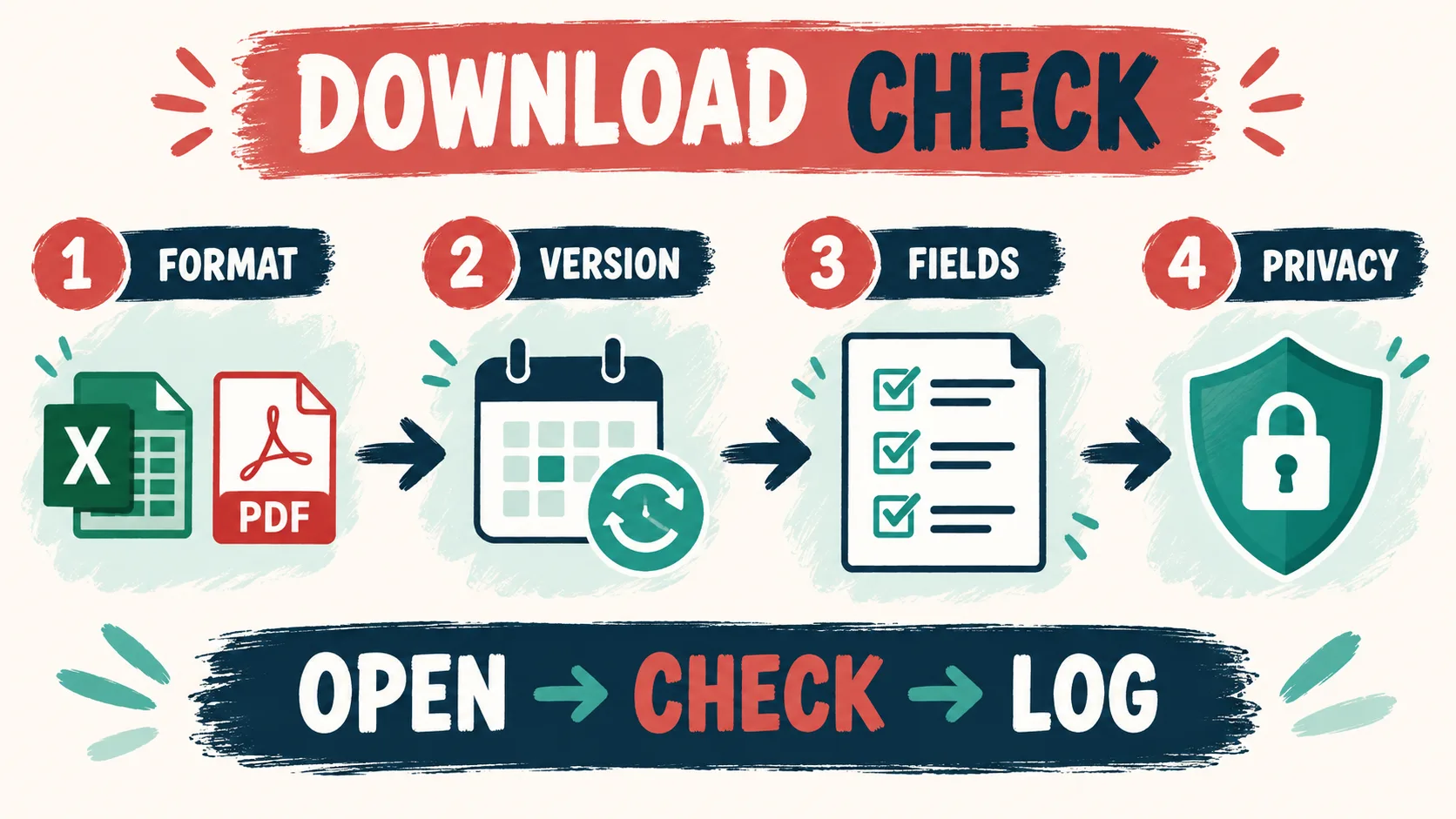
Before opening a download with real fieldwork data, run these checks. They take less time than untangling a version or privacy problem after several months.
- Confirm the source: identify the publisher, original page, update date, and whether the file claims to be official. Use the BACB resource hub for official forms; use third-party pages for tools and explanations only.
- Confirm the format: check whether the download is an .xlsx workbook, a Google Sheets copy, a printable PDF, a fillable PDF, or a ZIP containing several items. “PDF download” can describe instructions rather than a tracker.
- Confirm the rule version: record whether the file is designed for 2022 requirements, 2027 requirements, or a general source log. Do not assume that a “2027-ready” label proves that the formulas match the current BACB materials.
- Inspect the fields: look for dates, actual hours, fieldwork type, restricted and unrestricted categories, individual and group supervision, observations, supervisor details, period totals, and review status.
- Test the formulas: use fictional data first. Enter a small known total, a blank row, a partial period, and an intentionally unusual value. Check whether the workbook flags the issue or quietly produces a misleading total.
- Check the privacy model: remove client names and identifiers from sample data, review sharing permissions, and confirm where backups or form exports are stored.
- Save the original: preserve the untouched download, then create a working copy with a date and version label. Do not overwrite the source file every time you correct a row.
| Check | Pass condition | Red flag |
|---|---|---|
| Publisher | The source and purpose are clearly identified | A file uses BACB marks or language without an official source link |
| Version | Requirement edition and update date are visible | The file says “current” but has no date or version note |
| Calculations | Fictional test data produces expected totals and visible exceptions | Hidden formulas, unexplained multipliers, or silent errors |
| Privacy | De-identified data and restricted sharing are the default | Public links, client names in examples, or uncontrolled downloads |
| Source trail | Each summary can be traced to dated activity rows | Only a grand total exists, with no contemporaneous notes |
How the tracker should move toward the official form
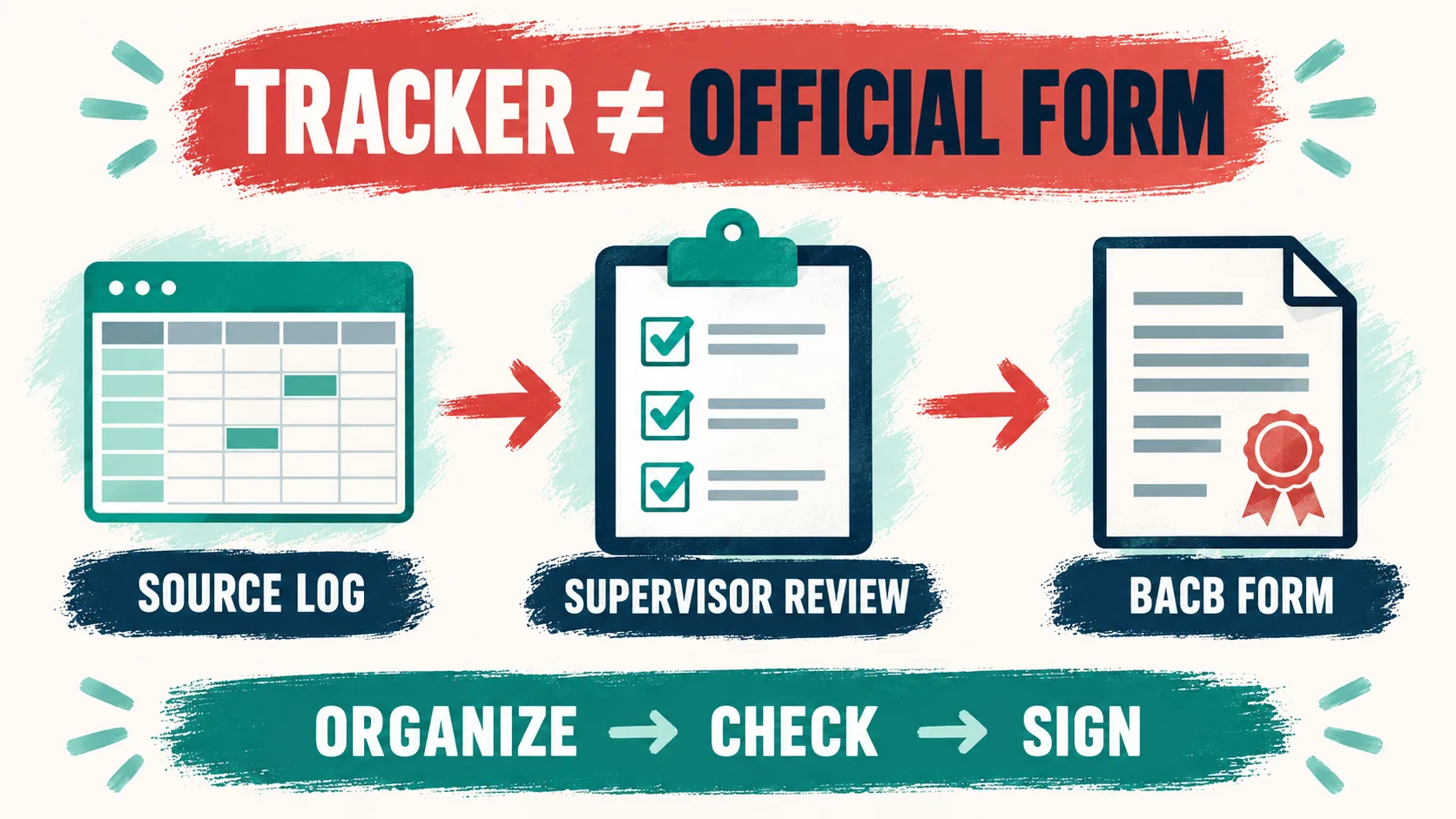
A tracker should feed a review conversation, not skip it. Use a simple three-stage workflow:
- Source log: enter actual dated activities, duration, classification, supervision type, supervisor, observation details, and a short de-identified note.
- Supervisor review: reconcile the period total, supervision percentage, individual/group mix, observations, and restricted/unrestricted categories. Mark questions instead of changing numbers to satisfy a formula.
- BACB form: transfer the reviewed values to the correct current Monthly or Final Fieldwork Verification Form for the requirement edition and supervision structure that apply.
Keep the tracker and form together as a documentation packet. If a form total changes after review, add a dated correction note and preserve the original record according to the placement’s documentation policy. A PDF export is useful for a stable snapshot, but exporting a spreadsheet does not make it an official form.
The official BACB supervision and training page links to documenting-fieldwork resources and the Fieldwork Checklist for BCBA and BCaBA Supervisors. Use those materials with the current handbook when a tracker’s instructions conflict with official guidance.
Check the 2022/2027 version boundary
The BACB’s 2027 BCBA Requirements page says the revised requirements take effect January 1, 2027 and identifies 2027 Monthly and Final Fieldwork Verification Forms for applicants using those requirements. It also lists separate high-level checkpoints for Supervised Fieldwork and Concentrated Supervised Fieldwork.
That does not mean every historical workbook should be overwritten. Before you use a download, write down the requirement edition that applies to your application and fieldwork dates. If a tracker has both 2022 and 2027 tabs, keep the tabs clearly separated and ask your supervisor how a transition period should be documented. Do not combine totals simply because the columns look similar.
- Use the current official form family for the application and requirement edition that apply.
- Keep actual hours separate from any planning calculation or pathway comparison.
- Check whether the file distinguishes individual-supervisor and organization structures.
- Confirm the current period range, supervision percentage, observation requirement, and unrestricted-activity rule from the official materials.
- Archive the version label and source URL with the tracker so another reviewer can understand what you used.
Protect the record and the client
Fieldwork documentation can contain sensitive information even when a template looks harmless. Use trainee and supervisor identifiers only where required, keep client names out of examples and filenames, and use codes or de-identified descriptions in the activity log. Review who can view, edit, download, and forward a cloud spreadsheet.
Also protect the audit trail. A file that lets anyone change formulas or delete rows without a history may be convenient but difficult to review. Use dated copies, version history, or a correction log. Keep the working file separate from the official signed form and follow the record-retention instructions that apply to your situation.
If you are comparing templates, the existing BACB Fieldwork Tracker Excel guide is the most direct next step on this site. Use this page as the pre-download checklist, then use the tracker page to understand the workbook workflow. Neither page replaces the official BACB forms or supervisor review.
Common download mistakes
- Confusing “PDF” with “official”: a PDF can be a guide, export, product insert, or official form. Check the source and title.
- Using an undated template: requirements and form fields can change. Keep the version date with the file.
- Opening real data first: test formulas and permissions with fictional entries before importing a fieldwork history.
- Trusting a green dashboard: a formula can flag arithmetic while missing a classification or documentation problem.
- Sharing a public Google Sheet: review link permissions and remove client identifiers before collaboration.
- Replacing the source file: keep the original download and a dated working copy so corrections remain traceable.
- Submitting a tracker as a verification form: transfer reviewed values to the current BACB form and complete the required attestation.
FAQ
Where can I download a BACB fieldwork tracker?: Start with the official BACB fieldwork resource hub for current Monthly and Final Fieldwork Verification Forms and related documentation resources. For third-party Excel or Google Sheets trackers, inspect the publisher, version, fields, formulas, privacy practices, and official-form boundary before using one.
Is the BACB fieldwork tracker Excel file the same as the BACB form?: Not necessarily. A tracker is usually a working documentation system. The official BACB form is a verification and attestation document with its own version, fields, signatures, and instructions. Read the title and source instead of relying on the filename.
Should I download both Excel and PDF versions?: Only if they have different jobs. Excel or Google Sheets can support row-level logging and calculations; a PDF can provide instructions or a stable snapshot. Multiple copies become a risk when they are edited independently and no file is designated as the source record.
What should a BCBA fieldwork tracker include?: At minimum, it should let you trace dated actual hours, fieldwork type, restricted and unrestricted categories, supervision type and duration, observations, supervisor details, period totals, review status, and supporting notes. The exact fields depend on the applicable requirement edition and your supervisor’s documentation system.
Does a 2027-ready tracker guarantee compliance?: No. A label such as “2027-ready” is a product claim, not a BACB decision. Compare the tracker with current official requirements and forms, keep the requirement edition visible, and have the qualified supervisor review the record.
Can a free BCBA mock exam verify my fieldwork download or hours?: No. A mock exam is a study resource, not a fieldwork tracker, verification form, or supervisor. If you are studying while organizing your records, you can use the Free BCBA Mock Exam as a separate exam-preparation activity.
Sources for Further Study
- BACB: BCBA Fieldwork Resources and Forms
- BACB: Supervision, Assessment, Training, and Oversight
- BACB: 2027 BCBA Requirements
- BACB: BCBA Handbook
- Behavior Analyst Resource Center: Fieldwork Tracker
This article is an educational file-selection and documentation checklist. It is not affiliated with or endorsed by the BACB and does not determine whether any fieldwork qualifies. Use current BACB materials and qualified supervisor review for your own record.
Take the Free BCBA Mock Exam
When you are ready to apply the idea, use the free practice resource below for additional feedback. Take the Free BCBA Mock Exam